TL;DR
- The German e-invoicing mandate has applied since 2025 — B2B and public-sector recipients in Germany must be able to accept structured XML invoices, and XRechnung is the de-facto standard.
- Building XRechnung by hand is brutal — UN/CEFACT or UBL 2.1 schemas, 150+ Schematron rules, country-specific Leitweg-IDs.
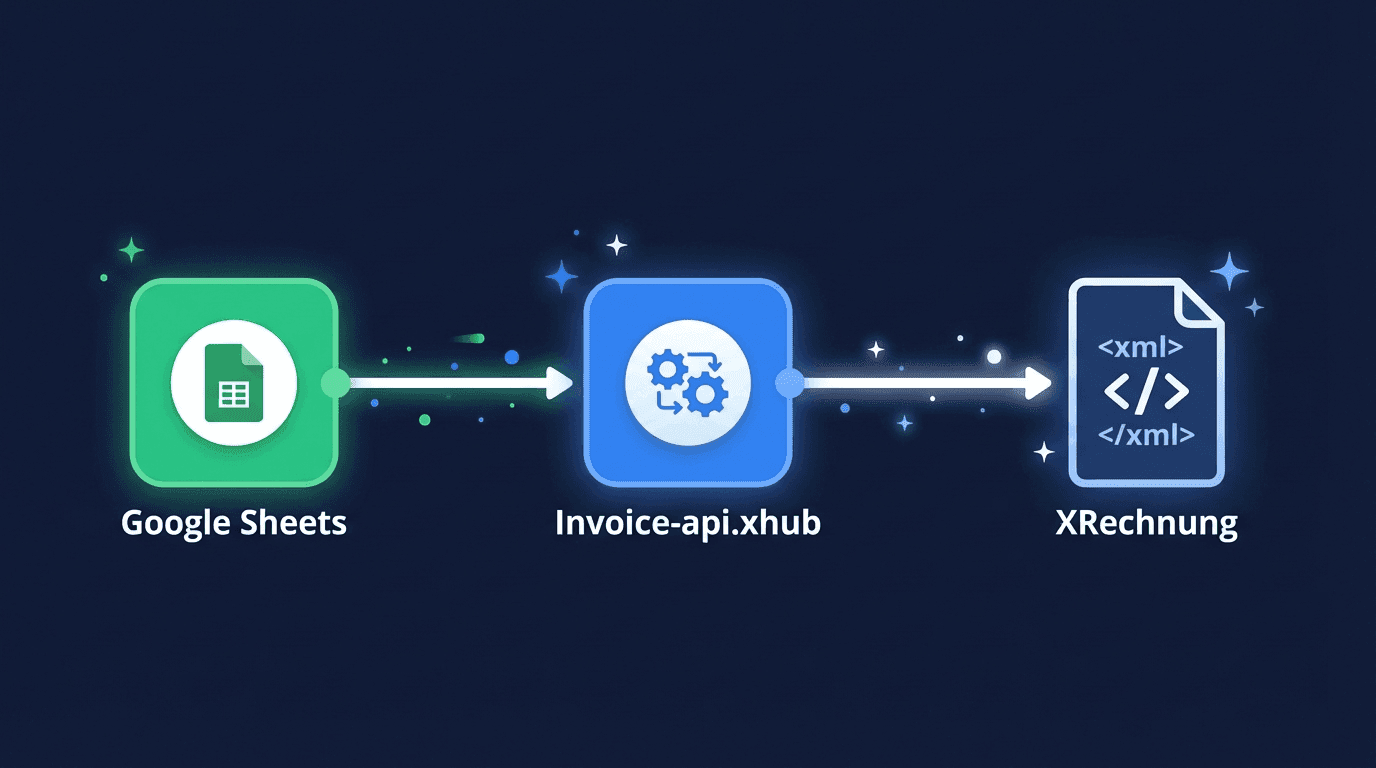
- n8n + invoice-api.xhub solves it in 3 nodes: Google Sheets → API call → file output. No XML, no code.
- Free tier covers testing — 20 invoices/month, no credit card.
- For: solo developers, agencies, and teams shipping invoicing into existing products.
Want to create XRechnung invoices automatically without building a custom integration? In this tutorial, I'll show you step by step how to build an n8n workflow that reads invoice data from Google Sheets and generates compliant XRechnung files using the Invoice-api.xhub API.
Full n8n documentation: Find all details on installation and configuration in our n8n integration docs.
Why Automate XRechnung?
Since 1 January 2025, B2B companies in Germany must be able to receive e-invoices; they must issue them from 1 January 2027 (above €800,000 prior-year turnover) and from 1 January 2028 (everyone). XRechnung is the standard for public sector recipients and is increasingly adopted in the private sector as well.
Creating XRechnung invoices manually is error-prone and time-consuming:
- Complex XML structure — XRechnung is based on UN/CEFACT CII or UBL 2.1 and requires dozens of mandatory fields
- Validation rules — Over 150 Schematron rules must be satisfied
- Country-specific requirements — Leitweg-ID, Buyer Reference, and other German mandatory fields
- Recurring invoices — Creating monthly invoices manually wastes valuable time
With n8n and Invoice-api.xhub you automate the entire process — from raw data to a finished, validated XRechnung.
Prerequisites
Before we start, you need the following:
1. n8n Instance
A running n8n installation — either self-hosted or via n8n.cloud. The Community Edition is free and perfectly sufficient for this tutorial.
2. Invoice-api.xhub Community Node
Install the official community node in your n8n instance:
- Go to Settings → Community Nodes
- Click Install a community node
- Enter
n8n-nodes-invoice-api-xhub - Confirm the installation
Find the full installation guide in the n8n documentation.
3. API Key
You need an API key from Invoice-api.xhub:
- Sign up at invoice-api.xhub.io
- Create a new key under Settings → API Keys
- Copy the key — you'll need it in n8n shortly
Try for free: The Free plan includes 20 invoices per month. Perfect for testing.
Step 1: Prepare Google Sheets
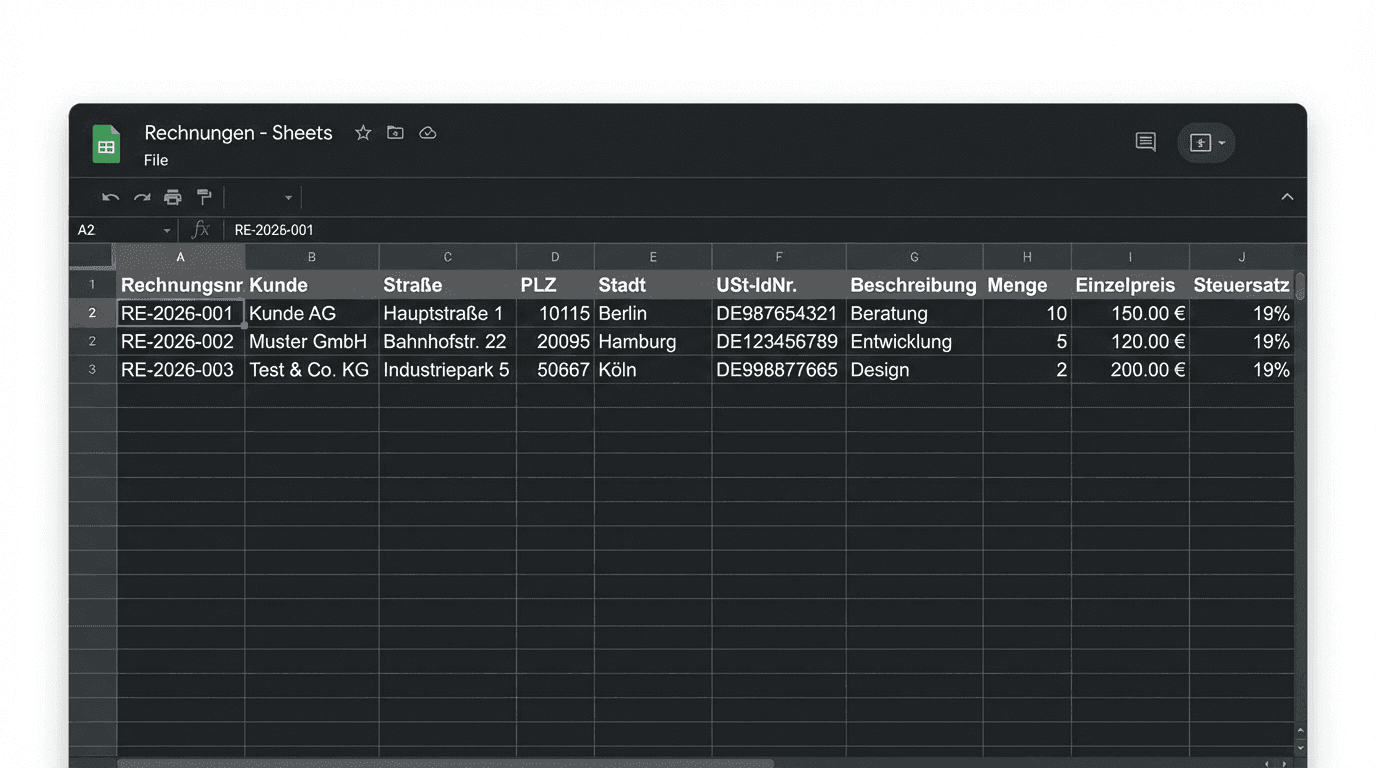
Create a Google Spreadsheet with your invoice data. The columns should cover the following fields:
| Column | Example Value | Description |
|---|---|---|
invoice_number | INV-2026-0042 | Unique invoice number |
issue_date | 2026-04-11 | Issue date (ISO 8601) |
due_date | 2026-05-11 | Due date |
buyer_name | Bundesamt für IT | Recipient name |
buyer_street | Musterstraße 1 | Recipient street |
buyer_city | Berlin | City |
buyer_zip | 10115 | Postal code |
buyer_country | DE | Country code (ISO 3166-1) |
buyer_vat_id | DE123456789 | Recipient VAT ID |
buyer_reference | 04011-12345-67 | Leitweg-ID / Buyer Reference |
item_name | API Access Pro | Line item description |
item_quantity | 1 | Quantity |
item_unit_price | 299.00 | Unit price (net) |
item_vat_rate | 19 | VAT rate in % |
Tip: For multiple line items per invoice, you can either use multiple rows with the same
invoice_numberor store items as JSON in a single column.
Step 2: Create the n8n Workflow
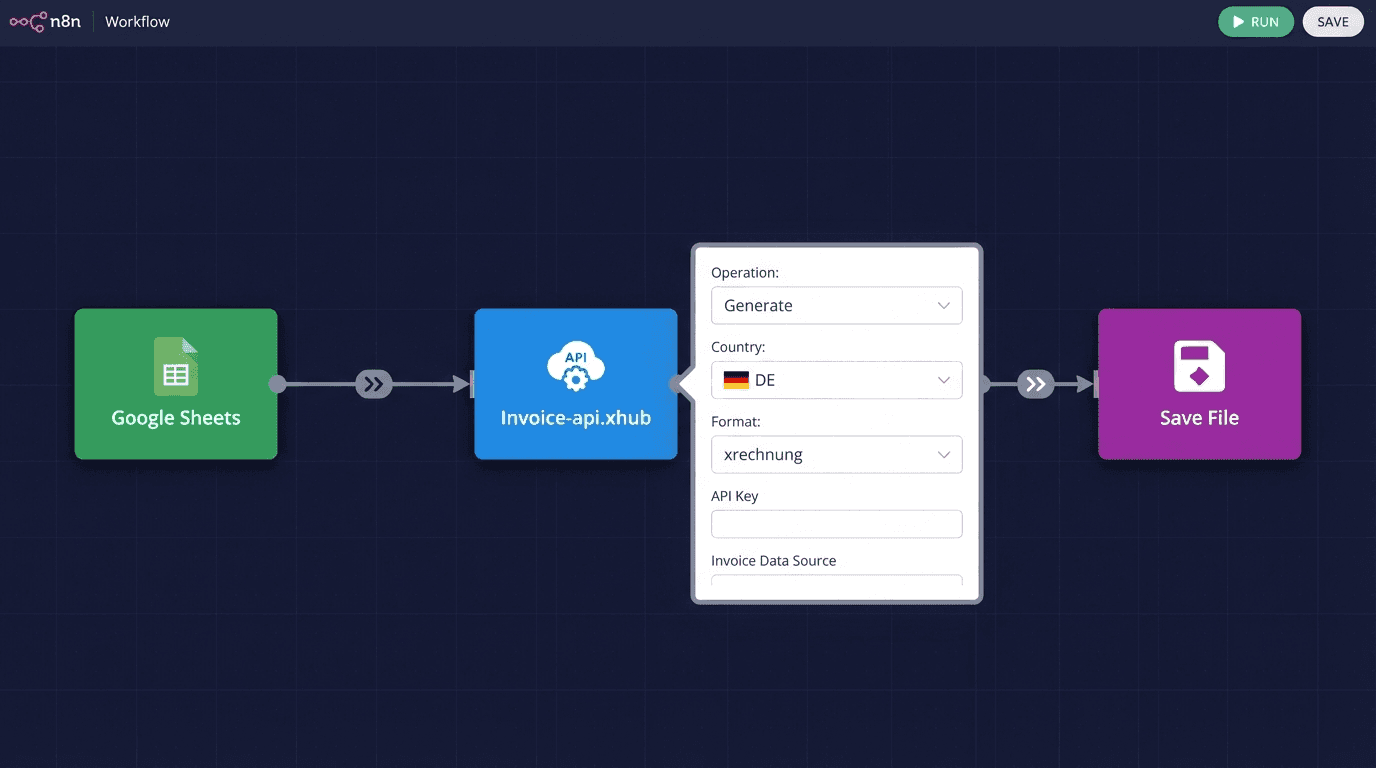
Now let's build the workflow in n8n. It consists of three nodes:
Node 1: Google Sheets — Read Data
- Add a Google Sheets node
- Connect your Google account
- Select the spreadsheet and worksheet
- Configure the trigger (e.g., manual or schedule-based)
Node 2: Invoice-api.xhub — Create XRechnung
- Add the Invoice-api.xhub node
- Enter your API key in the credentials
- Select the operation Create Invoice
- Set the format to XRechnung (UBL)
Data Mapping
Map the Google Sheets fields to the API fields. Here is an example JSON mapping:
1{2 "invoice": {3 "invoiceNumber": "{{ $json.invoice_number }}",4 "type": "invoice",5 "issueDate": "{{ $json.issue_date }}",6 "dueDate": "{{ $json.due_date }}",7 "currency": "EUR",8 "seller": {9 "name": "My Company GmbH",10 "street": "Hauptstraße 42",11 "city": "Munich",12 "postalCode": "80331",13 "countryCode": "DE",14 "vatId": "DE987654321",15 "email": "invoice@mycompany.de"16 },17 "buyer": {18 "name": "{{ $json.buyer_name }}",19 "street": "{{ $json.buyer_street }}",20 "city": "{{ $json.buyer_city }}",21 "postalCode": "{{ $json.buyer_zip }}",22 "countryCode": "{{ $json.buyer_country }}",23 "vatId": "{{ $json.buyer_vat_id }}"24 },25 "countrySpecific": {26 "countryCode": "DE",27 "leitwegId": "{{ $json.leitweg_id }}",28 "buyerReference": "{{ $json.buyer_reference }}"29 },30 "items": [31 {32 "position": 1,33 "description": "{{ $json.item_name }}",34 "quantity": "{{ $json.item_quantity }}",35 "unit": "C62",36 "unitPrice": "{{ $json.item_unit_price }}",37 "taxRate": "{{ $json.item_vat_rate }}"38 }39 ]40 }41}Note: This snippet shows the mapping of the core fields; a complete API payload additionally requires
subtotal,total,taxSummaryandpaymentTerms.dueDays(e.g. via a totals node in n8n). The target format (e.g.xrechnung) is part of the URL path/api/v1/invoice/de/xrechnung/generateand is not set in the body. For B2G invoices to public-sector recipients the Leitweg-ID is mandatory and lives atcountrySpecific.leitwegId—countrySpecific.buyerReferenceis the optional purchase-order reference, not the Leitweg-ID. Learn more in the n8n documentation.
Node 3: Process the Result
The API returns the finished XRechnung as XML. You can:
- Save it to Google Drive
- Send it via email
- Forward it to an ERP system
- Archive it in a database
Step 3: Test the Workflow
Before using the workflow in production, test it thoroughly:
- Click "Test Workflow" in n8n
- Check the API response — the status should be
200 - Inspect the XML output — open the XML and verify the fields
- Validate the XRechnung — use the Validation endpoint to ensure the invoice is compliant
Test Checklist
- Invoice number is correctly mapped
- Buyer Reference / Leitweg-ID is present
- VAT ID has the correct format (DE + 9 digits)
- Amounts and VAT are calculated correctly
- Date is in ISO 8601 format
Tip: Use the Free plan for testing. The first 20 invoices per month are free — perfect for the development phase.
Step 4: Save and Send the XRechnung
Once testing is successful, extend the workflow with storage:
Option A: Google Drive
Add a Google Drive node and save the XML file directly to a folder. Name the file after the invoice number, e.g., INV-2026-0042.xml.
Option B: Email
Use the Send Email node to send the XRechnung as an attachment. Make sure to set the correct MIME type (application/xml).
Option C: Generate Peppol BIS 3.0
Generating and validating Peppol BIS Billing 3.0 as a UBL file works regardless of how the document is delivered later — set peppol-ubl as the target format. Delivery over the Peppol network is handled by your access point; the current state of our Peppol gateway is on the roadmap. Format details: Peppol documentation.
Common Errors and Solutions
Certain errors occur regularly when creating XRechnung invoices. Here are the most common ones and how to fix them:
| Error Code | Description | Solution |
|---|---|---|
| Leitweg-ID missing | Leitweg-ID is missing or invalid | Ensure countrySpecific.leitwegId is set. The Leitweg-ID consists of coarse addressing, fine addressing and a check digit, and is mandatory for public-sector recipients. |
INVALID_VAT_ID | VAT ID has an invalid format | Check the format: Germany = DE + 9 digits (e.g., DE123456789). No spaces or special characters. |
MISSING_FIELD | A required field is missing from the invoice | Check the API response — the missing field is specified in the details object. Commonly missing: invoiceNumber, issueDate, seller.vatId, or buyer.name. |
INVALID_DATE | Date format is invalid | Use ISO 8601: YYYY-MM-DD (e.g., 2026-04-11). Do not use localized date formats like 11.04.2026. |
CALC_ERROR | Amounts do not match | The sum of line items must match the total amount. Avoid rounding differences — use 2 decimal places. |
Full error documentation: Find all error codes and their solutions in the error documentation.
Download the Workflow Template
So you don't have to start from scratch, we've prepared a ready-made n8n workflow template:
Download n8n XRechnung Template →
The template includes:
- Google Sheets trigger node (pre-configured)
- Invoice-api.xhub node with complete data mapping
- Error handling with automatic notifications
- Google Drive node for saving XML files
Simply import the JSON file via Workflows → Import from File in n8n.
Next Steps
You now have a working XRechnung workflow. Here are some ideas for extending it:
Create ZUGFeRD Invoices
In addition to XRechnung, Invoice-api.xhub also supports ZUGFeRD — the hybrid format that combines a human-readable PDF with embedded XML. Simply change the format parameter to zugferd-extended or zugferd-comfort.
Automatic Validation
Add a validation step to your workflow. Use the /validate endpoint to check every invoice before sending. Our validation tutorial shows you how to set this up with n8n.
More Countries
Invoice-api.xhub supports e-invoicing formats for multiple European countries. If you invoice internationally, you can use the same workflow for different formats — just adjust the format parameter.
Scheduled Workflows
Set up a Schedule Trigger that runs the workflow automatically — e.g., at the beginning of each month for recurring invoices.
Conclusion
With n8n and Invoice-api.xhub, you create XRechnung invoices fully automatically — no coding, no XML expertise, and no manual effort required. The workflow can be extended and customized to fit your needs.
The combination of n8n as a workflow engine and Invoice-api.xhub as an e-invoicing API gives you maximum flexibility with minimal effort.
What's the most painful invoice automation you've shipped? I'd love to hear how others handle Leitweg-IDs and Schematron rules in production.
Ready to get started? Check out the full n8n documentation or create your free API key right away.